Cart
0
TL;DR:
- Creating an effective home office requires balancing ergonomics, organization, technology, and personal style. Proper furniture placement and movement habits are essential to prevent pain and maintain productivity. Incorporating thoughtful layout, lighting, plants, and routines enhances comfort, focus, and overall well-being.
Setting up a home office that looks brilliant, feels comfortable, and actually helps you get things done is harder than it sounds. Most people focus on one element — a nice desk, perhaps, or a new chair — and neglect the rest. The result is a workspace that either looks good in photos but wrecks your posture, or functions adequately but drains your motivation every time you sit down. This checklist takes a different approach, weaving ergonomics, organisation, technology, and personal style into a single, practical framework you can apply room by room.
Table of Contents
- Define your workspace essentials
- Ergonomics first: Furniture and seating
- Smart tech and layouts for efficiency
- Organisation and workflow: Keep your space clutter-free
- Style meets comfort: Lighting, plants and personal touches
- What most home office checklists miss: Movement and real-life use
- Ready to upgrade your space?
- Frequently asked questions
Key Takeaways
| Point | Details |
|---|---|
| Prioritise ergonomics | Correct posture and quality seating prevent pain and boost daily comfort. |
| Declutter for clarity | A tidy, well-zoned desk space supports productivity and stress reduction. |
| Blend style with function | Layered lighting, plants, and smart layouts create a workspace that inspires. |
| Movement matters | Regular posture changes are as important as any piece of ergonomic furniture. |
Define your workspace essentials
Before you spend a penny on furniture or accessories, it helps to get clear on what your home office actually needs to do. The best setups balance four core criteria: ergonomic positioning, a decluttered desk surface, appropriate lighting, and clearly defined zones for different activities.
Every one of these matters more than it might seem. Poor posture leads to real pain over time. Clutter scatters your attention. Bad lighting causes eye strain and fatigue by mid-afternoon. And blurring work zones with personal zones makes it genuinely difficult to switch off mentally at the end of the day.
Here is what every effective home office needs as a baseline:
- An ergonomic chair with lumbar support and adjustable height
- A desk at the correct height for your arm and elbow position
- A monitor positioned at the right distance and angle
- Task lighting that reduces glare on your screen
- Storage that keeps surfaces clear and items accessible
- Defined zones: active work area, reference/storage area, and a break or rest spot
The ergonomic positioning standard is well established: standard ergonomic positioning means your monitor top sits at or slightly below eye level, an arm’s length away, with your keyboard keeping your elbows at 90 degrees and your feet flat on the floor or on a footrest.
“Your monitor top should sit at or slightly below eye level, an arm’s length away. Keep your keyboard so your elbows rest at 90 degrees, and keep your feet flat or use a footrest.”
Pro Tip: Think about whether your office needs to serve more than one purpose. A guest room that doubles as a study, or a table that needs to work for two users, requires slightly different planning. Consider foldable or modular furniture early in the process, and read up on optimising room layout before committing to anything fixed.
Ergonomics first: Furniture and seating
Once you know your core essentials, the next step is choosing furniture that genuinely supports your body throughout the working day.
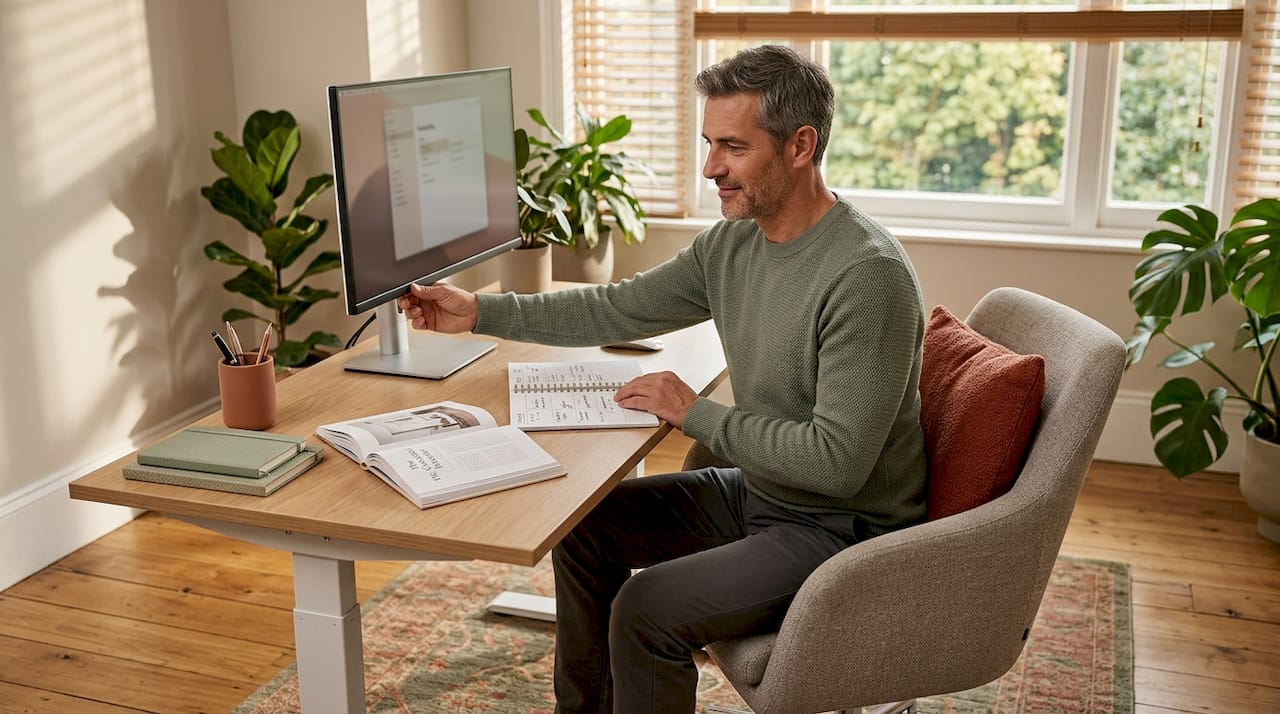
The evidence here is striking. 61% pain rate; 40-60% reduction of people working from home report musculoskeletal pain, but ergonomic chairs can reduce that pain by 40 to 60 per cent within just 8 to 12 weeks of use. That is not a minor comfort upgrade. That is a meaningful health outcome.
On the other hand, non-standard setups worsen pain, including low tables and floor cushions, are directly associated with neck and shoulder pain, lower back problems, and reduced work performance. The furniture you choose carries real consequences.
Here is a quick comparison of common ergonomic mistakes versus better alternatives:
| Common mistake | Why it causes problems | Recommended alternative |
|---|---|---|
| Chair too high or too low | Strains shoulders and lower back | Fully adjustable chair with lumbar support |
| Monitor at wrong height | Causes neck strain and eye fatigue | Monitor arm or adjustable stand |
| No back support | Leads to slouching and spinal pressure | Chair with contoured backrest |
| Armrests in wrong position | Raises shoulders, causes tension | Adjustable armrests at elbow height |
| Wrists bent while typing | Increases risk of repetitive strain injury | Keyboard tray or padded wrist rest |
Follow these steps to audit and upgrade your current setup:
- Sit in your chair and check that your feet rest flat without strain. If they dangle, add a footrest.
- Adjust your chair height so your elbows sit at 90 degrees when your hands are on the keyboard.
- Position your monitor so the top edge is at or slightly below your eye level.
- Ensure there is at least 50 to 70 centimetres between your eyes and the screen.
- Check your lower back is supported, either by your chair or a separate lumbar cushion.
- Look at your wrists. They should be neutral and flat, not bent upward or downward while typing.
If you are working in a smaller room, it is worth reading about organising small spaces before choosing larger furniture pieces that might overwhelm the room. There are also excellent space-saving solutions available that combine ergonomic function with a compact footprint.
Pro Tip: Even the best ergonomic chair cannot make up for sitting still for six hours straight. Movement is its own category of self-care, and no amount of lumbar support replaces it. Build breaks into your schedule from day one.
Smart tech and layouts for efficiency
With a healthy physical foundation in place, the next layer is technology and room layout. These choices can dramatically affect how productive and focused you feel throughout the day.
One of the most useful comparisons for home office workers is the monitor debate. Here is how the main options stack up:
| Setup option | Best for | Trade-offs |
|---|---|---|
| Single 27" 4K monitor | Most home workers, focused tasks | Excellent clarity, easy cable management |
| Dual monitors | Multi-tasking, coding, design work | More desk space required |
| Ultrawide monitor | Spreadsheets, creative work | Expensive, takes up width |
| Classic fixed desk | Stable setups, spacious rooms | No height flexibility |
| Standing desk | Those with back issues or long hours | Higher cost, requires discipline to use |
27" 4K under $300 is considered the sweet spot for most home office workers, offering sharp visuals without the complexity of a dual-monitor arrangement. Standing desks, meanwhile, reduce back pain when used consistently and alternated with sitting.
For smaller or multi-purpose rooms, layout matters as much as individual furniture pieces. Here are practical tips that work regardless of room size:
- Use an L-shaped desk to separate your active workspace from reference materials or secondary screens
- Mount shelves vertically to free up floor space and draw the eye upward, making rooms feel larger
- Place your desk near natural light but perpendicular to the window, not directly in front of it, to avoid screen glare
- Use a room divider or bookcase to separate a home office corner from the rest of a living room
- Keep cables off the floor with adhesive cable clips, under-desk trays, or cable management boxes
Cable management deserves particular attention. A tangle of cables on or under your desk creates visual noise that genuinely affects your sense of calm and control. Tidy cables take less than an hour to sort but can transform how your space feels every single day. For more ideas on how to make smaller spaces work beautifully, explore decorating small workspaces or look into creative storage solutions that do double duty.
Pro Tip: Before buying a cable management product, photograph the back of your desk first. It helps you count cables accurately and choose the right solution, whether that is a box, a sleeve, or a combination of clips and velcro ties.
Organisation and workflow: Keep your space clutter-free
The right furniture and smart layout get you most of the way there. But sustained productivity depends on keeping your workspace orderly day after day, not just when you first set it up.
A useful framework for this comes from a simple rule: 75% clear surface — keep 75 per cent of your desk surface clear at all times, and organise everything else using zones: hot (daily use items), warm (weekly use), and cold (occasional reference materials that can live in a drawer or on a shelf).
“Keep your desk 75 per cent clear. Use a hot zone for daily essentials, a warm zone for items you reach for weekly, and a cold zone for occasional materials stored away from your main surface. The result is faster thinking and lower stress.”
Here is a step-by-step workflow for decluttering and zoning your home office:
- Remove everything from your desk completely. Start from a blank slate.
- Separate items into three piles: daily essentials, weekly tools, and occasional items.
- Place daily essentials (notebook, pen, mouse, water bottle) within arm’s reach on your hot zone.
- Move weekly items like reference folders or secondary cables to a nearby drawer or shelf.
- Store occasional items in labelled boxes or baskets, away from your immediate workspace.
- Reassess monthly. If something sits in your hot zone but goes untouched, move it further away.
Storage is the unsung hero of a well-functioning home office. The best setups include:
- Wall-mounted shelving to keep books and files off your desk
- Under-desk drawers or pedestals for stationery and documents
- Woven baskets or fabric boxes for items that need to be accessible but not visible
- A desktop organiser for daily items that keeps things upright and contained
- Cable trays fixed underneath the desk to manage wires invisibly
A clear workspace is not just about aesthetics, though it certainly helps with those. Clutter actively competes for your attention and increases cognitive load, meaning your brain is working harder just to ignore the mess around you. Keeping surfaces clear is one of the simplest mental health interventions available to remote workers. Take inspiration from stylish storage solutions that combine practicality with real visual appeal, or browse ideas for styling small spaces if your office is compact.
Style meets comfort: Lighting, plants and personal touches
With clutter controlled and the fundamentals sorted, this is where your home office becomes a space you genuinely want to spend time in. Style is not superficial. It directly affects your mood, motivation, and creative energy.
Lighting is the single most underrated element of home office design. Most people rely on a single overhead bulb, which creates flat, harsh light that tires the eyes quickly. Instead, aim for layered lighting:
- Task lighting: A desk lamp with adjustable brightness and colour temperature for focused work
- Ambient lighting: A floor lamp or wall sconce that softens the overall feel of the room
- Accent lighting: LED strip lights behind a monitor or bookcase to add depth without glare
- Natural light: Position your desk to benefit from daylight without screen reflection
Plants are another element that earns their place far beyond decoration. Even a single potted plant on your desk introduces a biophilic element (a connection to nature in a built environment) that measurably lifts mood and focus. Easy-care options like pothos, snake plants, or ZZ plants require minimal attention and thrive in most office conditions.
“Natural elements such as plants and views of greenery have a measurable positive effect on focus, creativity, and feelings of wellbeing. Even indirect exposure to nature within a workspace setting shows meaningful results within days.”
Personal touches matter too. A framed print you love, a small sculpture, or a meaningful object on your desk makes the space feel yours rather than generic. These details signal to your brain that this is a space where good work happens. For guidance on how to layer design elements effectively, the guide on layering home styling offers genuinely useful practical advice.
Pro Tip: Rotate your decorative items seasonally. Swapping a print or a plant’s position every few months keeps your environment feeling fresh and prevents the visual fatigue that comes from seeing the exact same setup every single day.
What most home office checklists miss: Movement and real-life use
Here is something worth saying plainly: most home office checklists focus on what you buy, and almost none of them focus on how you use what you have. That gap is significant.
The honest truth is that an expensive ergonomic chair, a standing desk, and a perfectly positioned monitor will not save you from discomfort if you sit completely still for hours at a time. Expert nuance: Chair alone insufficient shows clearly that pain-free remote workers share one habit: they use shorter sitting periods, take more frequent breaks, and engage in regular exercise outside of work. The chair is a factor. It is not the whole answer.
“Sitting less and moving more is consistently identified as the key differentiator between remote workers who experience chronic pain and those who do not. No amount of ergonomic investment replaces the basic human need for movement.”
This reframes the entire conversation around home office setup. You are not just creating a static environment. You are designing a system that prompts healthy behaviour throughout the day. That means building in movement cues: a timer that goes off every 45 minutes, a habit of making tea away from your desk, or a standing period every afternoon.
Use apps or simple visual reminders to prompt these habits. A sticky note on your monitor, a phone alarm labelled “stand and stretch,” or a dedicated stretch programme on your phone all cost nothing and outperform even the best chair if used consistently.
Your setup should also flex as your work changes. If you move into a project-heavy phase requiring long concentrated sessions, you might need to add a second screen or rethink your storage zones. Revisit your layout every quarter and ask honestly whether it still serves how you actually work. For broader inspiration, the decorating workflow tips at Homable offer useful seasonal prompts to keep your space evolving with your needs.
Ready to upgrade your space?
If this checklist has sparked ideas for your own home office, the next step is finding pieces that genuinely deliver on both style and function.
At Homable, we have curated a range of home accessories, storage solutions, and decorative pieces designed specifically for modern living spaces that need to work as hard as they look good. Whether you need sleek desk storage, elegant shelving, or finishing touches that bring personality to a functional room, our collections are built around real home needs. Explore our best sellers and new arrivals, enjoy free shipping on orders over £100, and find exactly what your workspace has been missing. Your ideal home office is closer than you think.
Frequently asked questions
What is the ideal desk height for a home office?
The ideal desk height allows your elbows to rest at a 90-degree angle when typing, keeping wrists straight for reduced strain. Standard ergonomic positioning places this alongside correct monitor height and foot support as the three pillars of a pain-free setup.
How often should I stand or move during the workday?
Aim to change position or stretch every 30 to 60 minutes to prevent pain and maintain focus. Expert nuance: Chair alone insufficient confirms that frequent breaks are more protective than any single piece of furniture.
Are standing desks worth it for home offices?
Standing desks can reduce back pain and support better posture when alternated with sitting rather than used exclusively. The 27" 4K under $300 monitor guide notes that pairing a standing desk with a quality monitor setup delivers the strongest combined benefit.
What are the risks of using non-ergonomic furniture?
Non-ergonomic furniture significantly increases the likelihood of neck, back, and shoulder pain, as well as reduced work performance. Non-standard setups worsen pain even when used only part-time.
How should I organise my desk for maximum productivity?
Keep 75 per cent of your desk surface clear and use a hot, warm, and cold zone system to manage items by frequency of use. The 75% clear surface rule reduces clutter-driven cognitive load and makes daily tasks noticeably faster.